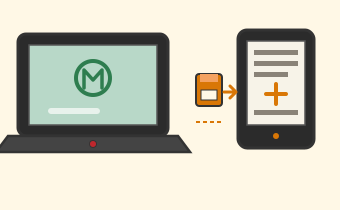
Chris, here is your smallest commission of the day and maybe the most durable one: the Xteink X3 that arrived this morning becomes a pocket Bible, and nothing else, forever. You made that call on November 5, before the device even shipped: one reader, one book, no library, no store, no feed. The whole load is one folder of finished books on one card, ten minutes at the X220, and most of that is waiting for a copy bar. This page is written to you, and it stays up for anyone else holding the same little reader.
The book we are loading
The translation is the Berean Standard Bible, the BSB: a modern, readable English Bible whose translators gave it away, dedicating the text to the public domain in April 2023. The form of it you downloaded is the one built for this exact device: the xteink3-bible set, the whole BSB as 66 individual EPUB files, one per book, numbered 01 to 66, Genesis to Revelation. It is a reader's Bible in the true sense: the verses run as flowing paragraphs instead of one verse per line, so a 3.7-inch screen wastes nothing on white space; chapter numbers sit small and bold inside the text; and each chapter is its own internal file, so the table of contents can jump straight to a chapter. The set was formatted on purpose for very small e-ink screens like this one, and the whole set is CC0, public domain, same as the Bible it carries.
One desk confession, for the record: on November 5 I staged a different build for you, the Lantern Bible, Reader's edition, the same public-domain BSB text as one single 2.7-megabyte file. It stays in your pocket-bible folder as the spare. But 66 small books suit this reader better than one big file, and your set was made for the X3 by name, so it is the load this page teaches. Two more honest notes before hardware. The ESV is not in this story: Crossway holds that copyright, no legal free complete ESV file exists to sideload, and your print ESV New Testament covers that translation on paper. And your X4 runs CrossPoint, the open replacement firmware; this X3 stays on stock firmware by your own ruling, and stock is all this job needs.
What you need
Five things, all already in the apartment or the cafe bag. The X220, logged into Linux Mint. The X3, asleep or off. The microSD card that came pre-installed in the X3, 16 gigabytes, still in its slot. The USB-A microSD adapter that came in the X3 box. And the download itself, which you have already staged in Documents, in the folder you named XTEINK, as the folder named Berean Standard Bible. That is the entire toolkit: no account, no app, no cable ritual.
Step one: card out of the X3, into the adapter, into the X220
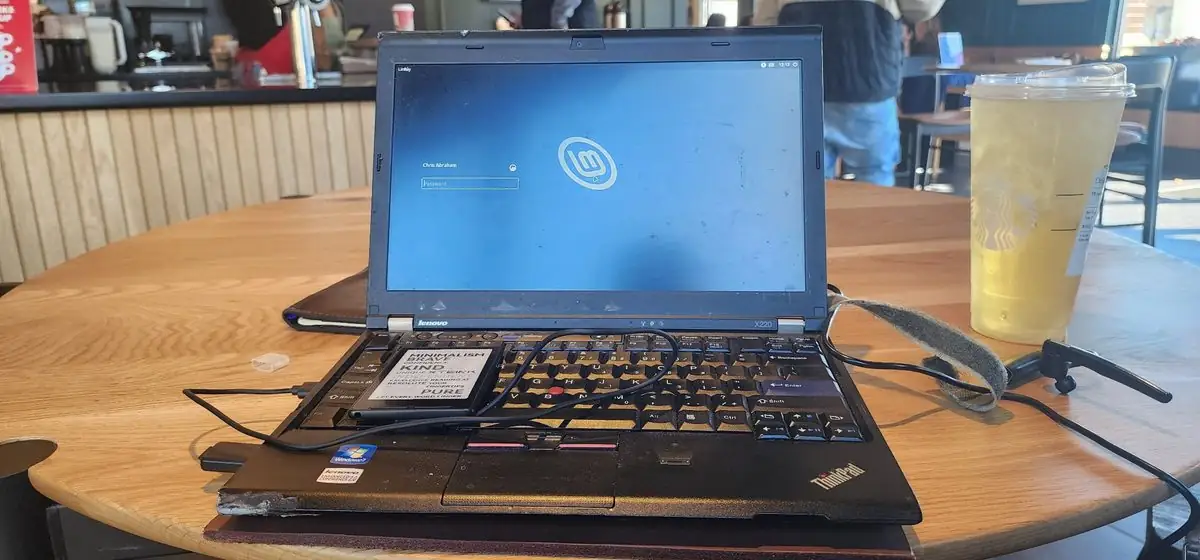
With the X3 asleep or powered off, pop its microSD card out and slide the card into the USB-A adapter. Adapter into any USB-A port on the X220; the left side is where yours lives in the photograph. Mint notices removable media: the card mounts automatically and Nemo, the file manager, opens a window onto the card. That window is the workbench; everything else happens in it or in one small utility.
Step two: check the card's filesystem before you touch anything
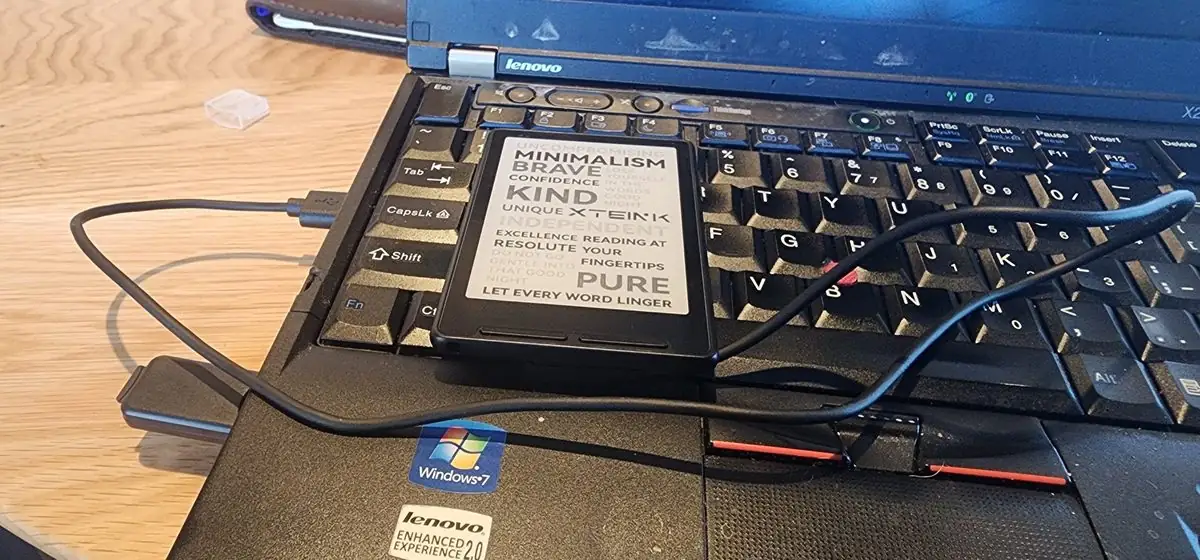
Open the Disks utility from the Mint menu (its full name is GNOME Disks) and select the card in the left-hand list. Under its partition, Disks names the filesystem type. If it says FAT32, do nothing; you are already where you need to be. If it says exFAT, also do nothing: the X3 reads exFAT as well, and a working card is never improved by a format. The card that shipped in the device is 16 gigabytes and almost certainly already FAT32.
The only case that calls for a format is a card that reads NTFS or ext4, neither of which this reader can use. Then, in Disks, click the gear icon under the partition, choose Format Partition, pick the FAT type (the one described as compatible with all systems and devices), and format. Hear this plainly: formatting erases everything on the card, permanently. Today that costs nothing, because the card is new and holds nothing of yours yet. If you would rather check from a terminal, one exact command tells the truth:
lsblk -f
Find the card's row and read its FSTYPE column: vfat is FAT32 wearing its Linux name.
Step three: copy the books onto the card
Open a second Nemo window and walk the exact path: Documents, then XTEINK, then the folder named Berean Standard Bible. Everything in it is a finished book, 66 EPUB files, numbered and ready to read. (In the raw download, that same set arrives as the folder xteink3-bible-main, and the books are its epub_books folder; your staging is tidier.) Select them all (Ctrl+A) and copy them straight onto the top level of the card. No new folder, no rearranging: the project's own loading instructions say to copy the .epub files onto the card, and the stock library will shelve them in their numbered order. Wait until the copy truly finishes and the progress bar is gone, then give it one more breath for good manners.
Now the part that saves you an afternoon: the other things in the download folder are not for you today. build_bsb_epubs.py is the script that generated these books from the source text, and requirements.txt is its grocery list. You do not need to run the script or install anything from the list, because the books it would build are already built. The script is the printing press; you already hold the printed books. Leave the press untouched, for the hypothetical day you want to rebuild the set yourself.
Step four: eject like you mean it
In Nemo, click the eject arrow beside the card's name in the sidebar, or right-click the card and choose Eject. Wait until Mint tells you the card is safe to remove. Then, and only then, pull the adapter out of the X220 and take the card out of the adapter. This is the step everyone skips and the step that matters most: an EPUB yanked mid-write is a corrupted book. Ten seconds of patience is the entire price of a clean load.
Step five: card in the X3, power on, open Genesis
Slide the card back into the X3 and power it on. Open the library and there is the shelf: the 66 books in their numbered order, Genesis at the top, Revelation at the bottom, one tap each. Open Genesis and read a page to prove the load; the little reader takes a moment to index the new card the first time, and after that it remembers. If the shelf ever looks stale after you add books later, the community remedy is built in: open any book, choose OK, then Index, and let the reader rebuild its index.
If it does not show up
- Wrong ending. Each file must end in .epub, lowercase, with nothing after it. A file with .txt after the .epub is, to this reader, a text file.
- Buried too deep. The books belong on the card's top level, the way the project ships them. If you tucked them inside folders, lift them out; two levels deep is the practical limit.
- Wrong filesystem. NTFS and ext4 cards do not read in this device. Go back to step two and make it FAT32.
- Card not seated, reader confused. Power the X3 fully off, reseat the card until it sits home, and power on again.
- Copy cut short. Recopy the file, and eject properly before pulling anything out.
- DRM. This Bible has none and never will. A store-bought EPUB carrying DRM will not open on the X3 wherever it sits; that is the store's lock, not your mistake.
The rest of the family
This little reader already has a walk-on part in the machine you asked for last week; its build-it-yourself sibling is the InkQuest how-to; and the same X220 learned its Infocom manners this morning in Chris, Put Hitchhiker's on the X220. Xteink's own X3 page carries the official format list, and the community getting-started guide at readme.club is a solid independent walkthrough. The book set lives at the xteink3-bible project on GitHub, free to copy and give away, which is rather the point of it.
Done, and proven
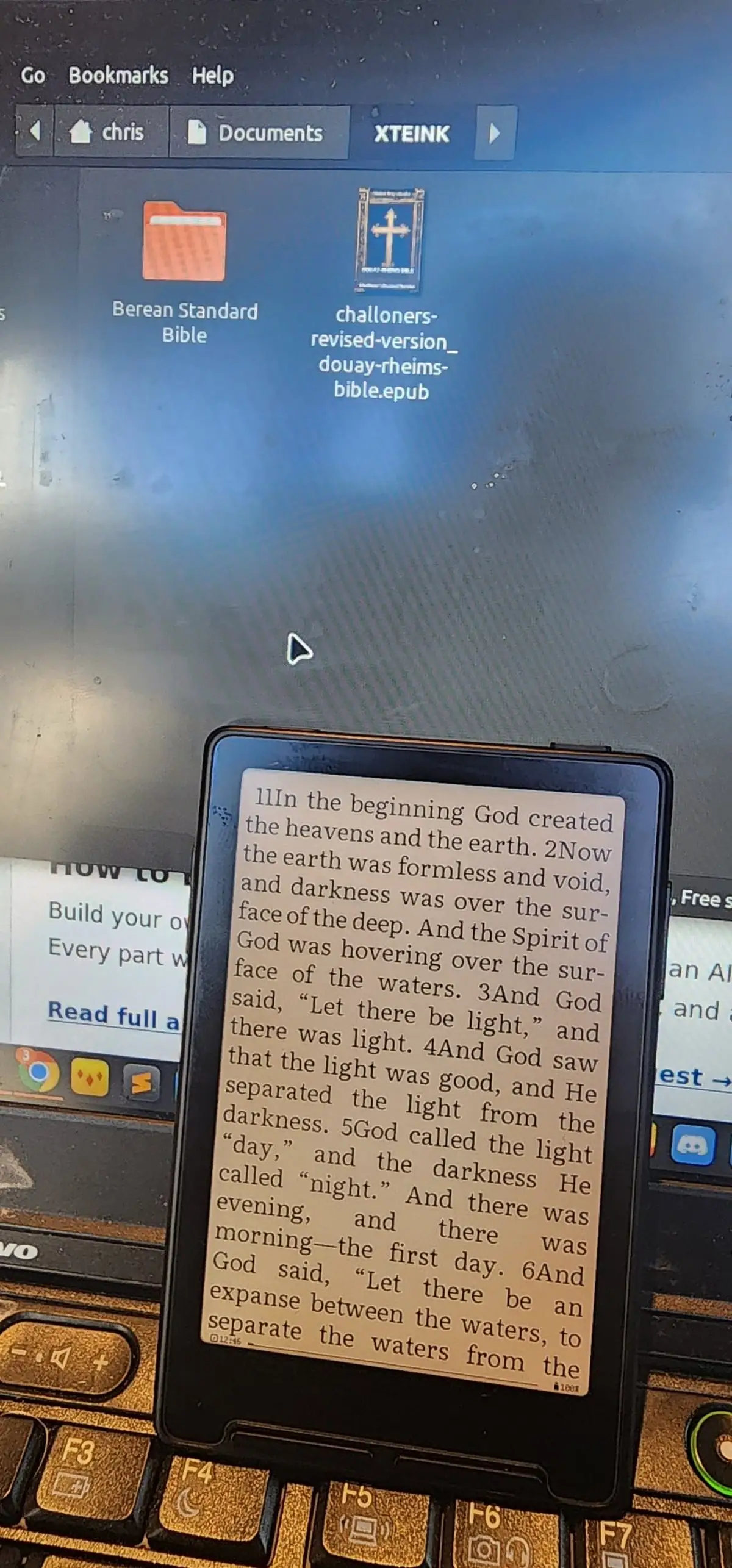
This page does not have to end on instructions, because the ending already happened. You ran the load yourself at 1246 today, and the photograph below is the receipt: the X3 standing on the X220 keyboard, open at Genesis, "In the beginning God created the heavens and the earth," battery at a hundred percent. Behind it, your XTEINK staging folder holds one more thing worth naming: challoners-revised-version_douay-rheims-bible.epub, the Challoner revision of the Douay-Rheims Bible, staged alongside the BSB as a second Bible.
Last word, and it is the whole reason for this device. A reader with a library in it is a shelf you carry and mostly never open; a reader with one book in it is a book. The X3 will never buzz, never badge, never suggest a video, never ask you to rate anything. It rides in the pocket your keys are not in, it sips its battery for a fortnight, and every time you pull it out there is exactly one thing it can possibly be doing. That is why a one-book device earns its pocket: it is the only screen you own that wants nothing from you.
Update, Nov 10, 2026, 1236: This lesson was first drafted around the single-file Lantern Bible build the desk had staged on November 5. Before the page went live, Chris screenshotted the download actually in his hands, the per-book xteink3-bible set, and the steps above were rewritten to match that folder exactly. The translation never changed; only the packaging did. A second update at 1246 the same day: Chris completed the load himself and photographed the X3 open at Genesis 1; the article now carries that photograph, names his Documents/XTEINK staging folder, and notes the Challoner Douay-Rheims staged alongside.